
Drop the file. Watch it join the city.Data, documents, or both.
Data Management is how your data gets into GUS. Three tabs in one workspace · Spatial Data for GeoJSON, Shapefile and coordinate CSV files; Documents for PDF, TXT, DOCX and Markdown that get chunked and indexed for retrieval; and a direct link to Fieldnotes so you can switch without leaving the sidebar. A single upload wizard handles both formats, every file moves through processing → indexed → error, and indexed assets are ready for Map View, Chat and GUS Consult in one click.
Pick a tab. Upload. Watch it index. Hand it over.
Pick a tab
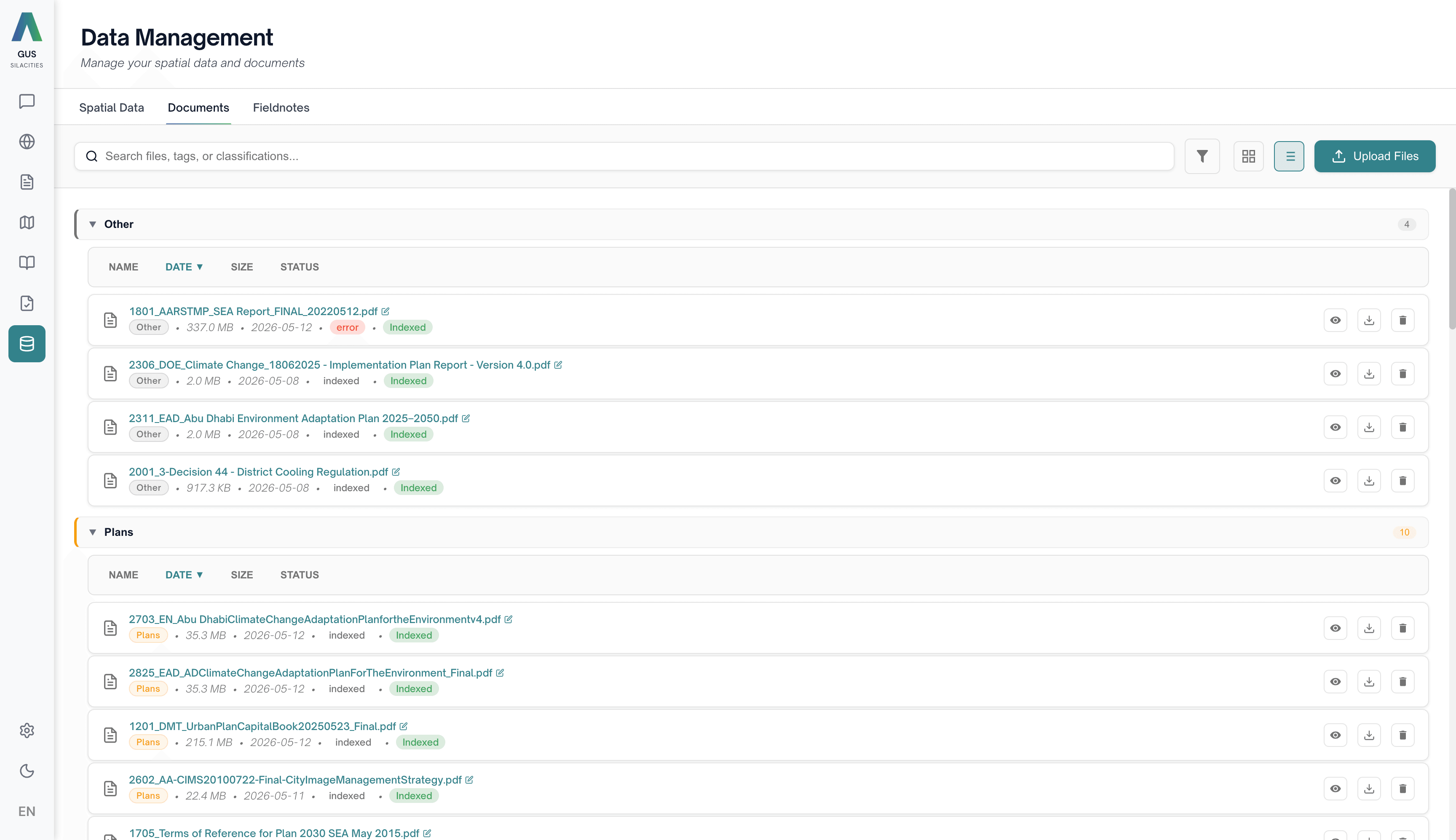
Spatial Data for GeoJSON, Shapefile (zipped) and coordinate CSV. Documents for PDF, TXT, DOCX and Markdown. A third Fieldnotes tab is a shortcut into the Fieldnotes list, not an upload path.
Upload
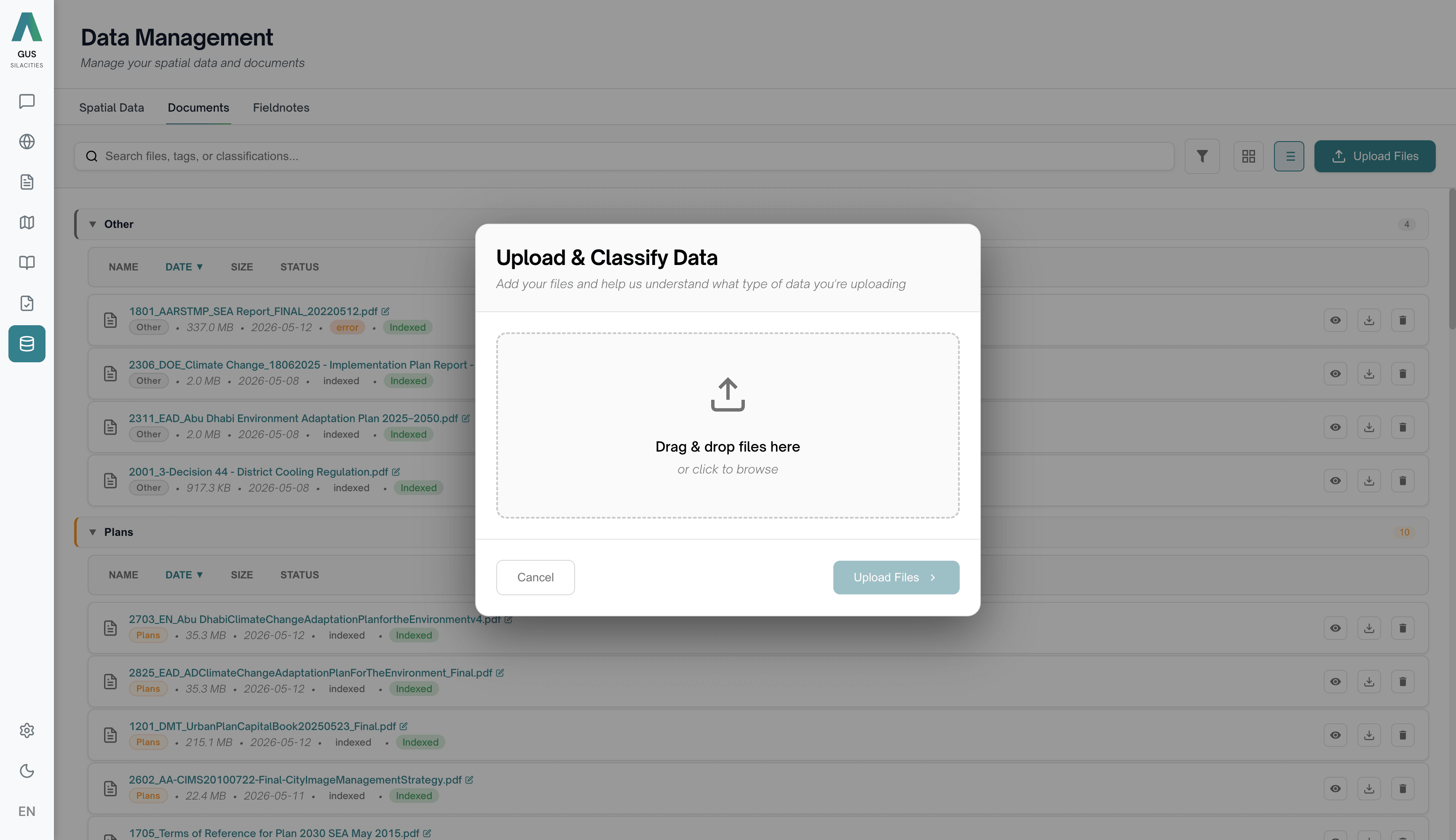
Drag onto the upload zone or click Choose Files. Each file shows its own progress bar. Both spatial and document formats flow through the same wizard, with a classification step for category, date and data type.
Watch it index
Status moves processing → indexed → error. Spatial files write columns for Name, Format, Features, Size, Type, Status, Created. Documents write Pages/Chunks alongside Size, Status, Created. Six summary cards across the top keep the library at a glance.
Hand it over
Spatial Data rows offer Load to Map, Delete, Refresh and Import · one click sends a dataset into Map View as a new layer. Indexed documents appear automatically in GUS Consult Document Chat, Expert Chat and as a GUS Chat source when RAG is enabled.
What Data Management does for the team.
Drop in anything — one wizard sorts it
Spatial Data and Documents share the same drag-and-drop zone and classification step, but land in their own tabs with the columns each type actually needs.
Indexed for every tool
A dataset shows on the Spatial Data tab with Load to Map, Delete, Refresh, Import per row. A document writes its Pages/Chunks count once indexed and becomes searchable in GUS Consult and GUS Chat.
One click to Map View
Send any indexed dataset into Map View in a single click. The workspace opens and the dataset appears as a new layer, ready to style in the Layers panel.
We moved three years of inspection data into GUS in an afternoon. Tagging up front made every downstream question useful from day one.