
A field journal the map remembers.Scenes. Stories. A flight path.
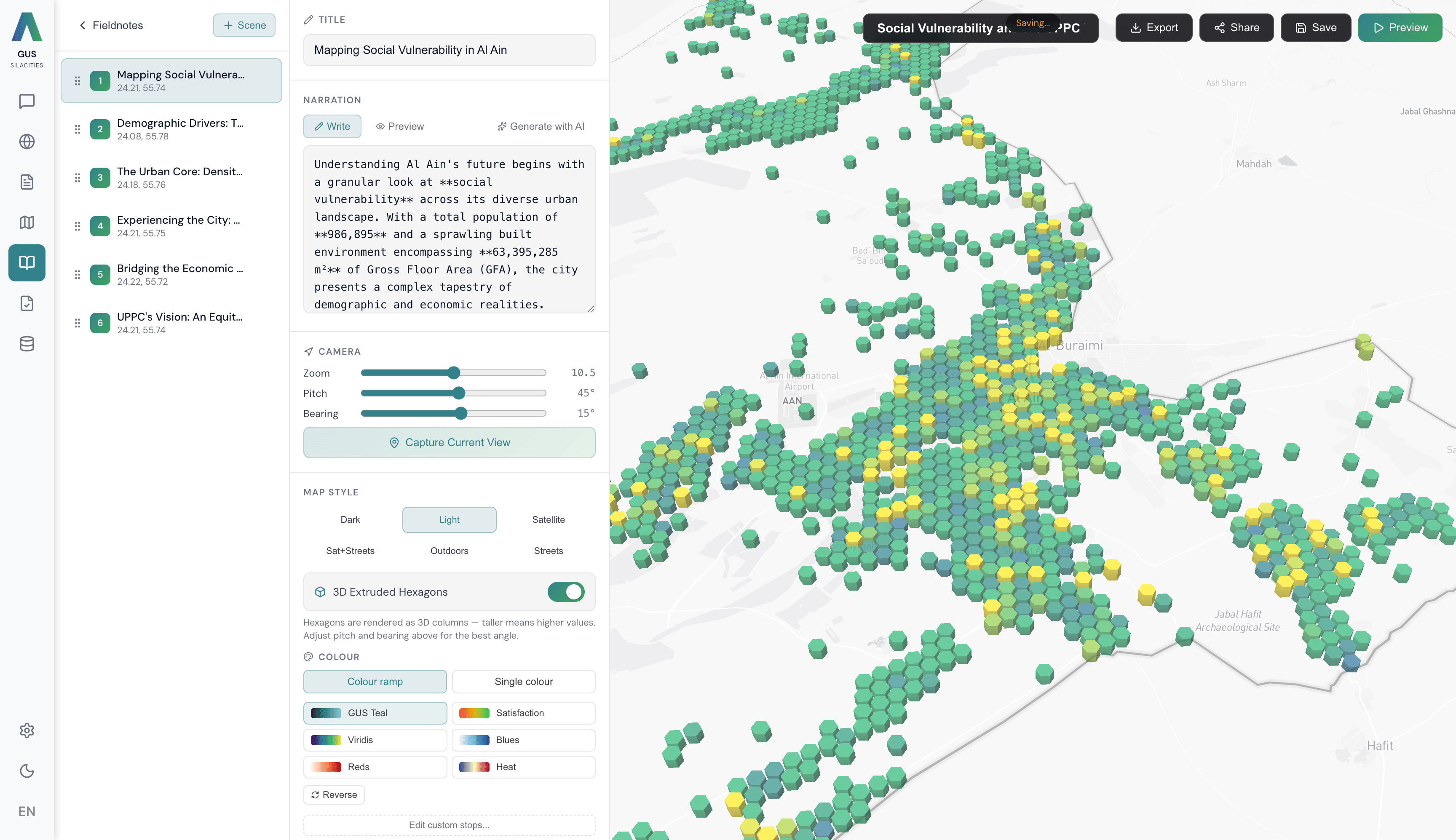
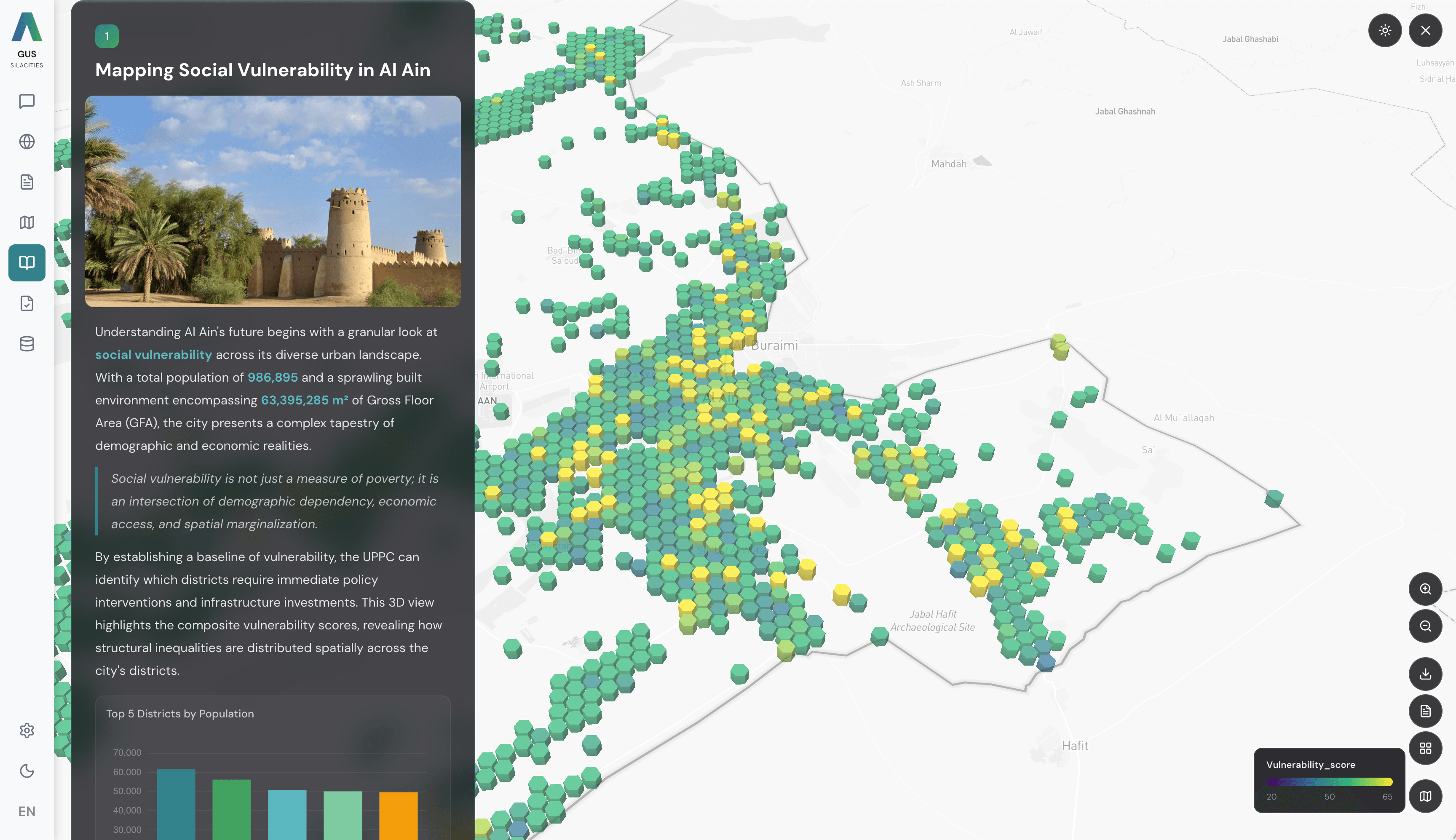
GUS Fieldnotes is the storytelling tool inside GUS. A three-column editor with the scene gallery on the left, the scene editor in the middle and a live map canvas on the right. Two AI helpers · AI Fieldnote Builder generates a whole multi-scene draft from a topic, Write with AI drafts narration for one scene at a time. Capture Current View locks each scene's camera in place so the map flies between them as readers scroll. Share as a public read-only link or download a multi-page PDF for the council pack.
Start the draft. Set the camera. Write the narration. Share.
Start with a blank or a draft
New Fieldnote opens a blank scene. Build with AI opens the AI Fieldnote Builder modal · describe the topic, area and structure, then Generate Scenes. Use Generated Scenes loads them into the editor, Start Over regenerates.
Set the scene camera
In the live canvas on the right, pan, zoom and tilt to the shot you want. Click Capture Current View (Camera icon) to copy latitude, longitude, zoom, pitch and bearing into the scene's position fields. Pick a data overlay, a colour palette, and the 3D extrusion toggle.
Write the narration
Narration is Markdown. Click the Sparkles button for Write with AI · 2 to 3 paragraphs drafted from the scene title and the camera position, edit freely. Drag scenes in the gallery to reorder. Auto-save runs 3 seconds after you stop typing.
Share or download
Click Share for the Private / Public toggle and Copy Link · public links are read-only, no GUS account needed. Click Download for a multi-page PDF · map snapshot plus narration plus title per scene. Click manual Save first so the recipient opens the version you intend.
Live data under every narrative.
Each scene carries an independent data overlay selector, colour palette and 3D extrusion toggle. The live canvas updates as you change them, so the commentary is grounded in analysis as much as description. The map is the canvas, the data is the source.
Satisfaction overlays
Resident satisfaction on the dual-layer framework for the area in the scene. Aspect-level detail, emotion profiling, Sila Score 0 to 10, coloured hex by hex on the live canvas.
Demographics and activity
Population, density, foot-traffic patterns and POIs for the catchment under the scene. Powered by the Urban Pulse feeds and the demographic estimates from telecom, mobility and satellite signals.
Urban structure
Built environment and public-realm reads from the Urban Spaces engine · typology, condition, amenity gaps · plus social vulnerability layers when the scene needs them.
Your own layers
Any spatial dataset indexed in Data Management can be selected as a per-scene overlay. The colour palette and 3D toggle apply per scene, so two scenes can read the same dataset two different ways.
What makes GUS Fieldnotes worth opening.
Auto-save on a 3-second debounce
Every edit writes automatically 3 seconds after you stop typing. The Save indicator shows Saving then Saved. Force an immediate write with the manual Save button before sharing.
One camera per scene
Capture Current View locks latitude, longitude, zoom, pitch and bearing into the scene. The map animates between consecutive cameras as readers scroll · two scenes with the same camera create a deliberate pause for the narration to land.
AI Builder plus per-scene Write with AI
AI Fieldnote Builder drafts a whole multi-scene fieldnote from a topic description. Write with AI fills one scene at a time from its title and camera position. Mix them as the work demands.
We captured a two-kilometre walking audit and played it on the boardroom screen the next morning. Every scene footnoted the data the team could follow up on.