
The full GIS workspace. And an AI that runs it.On the same canvas.
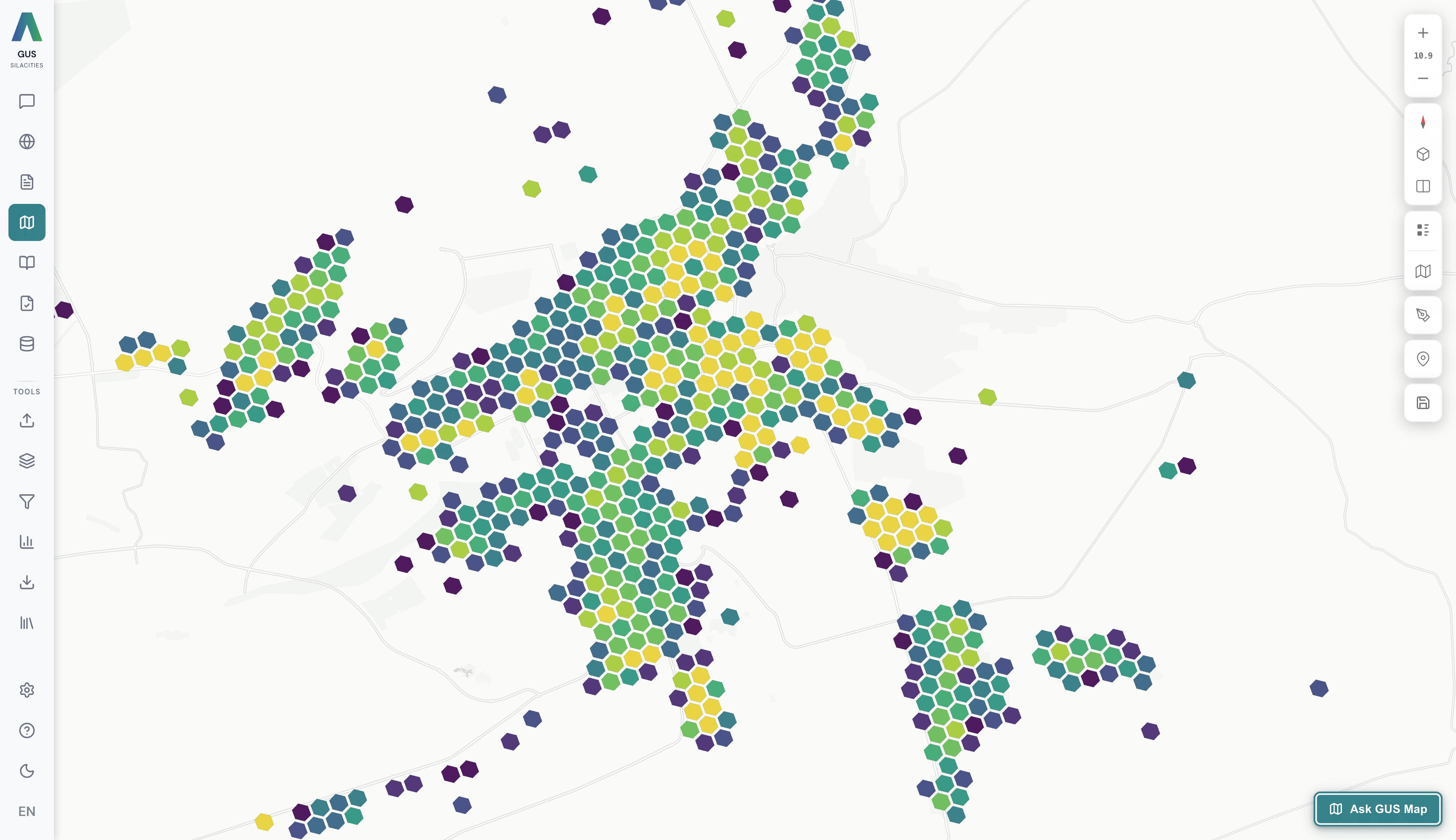
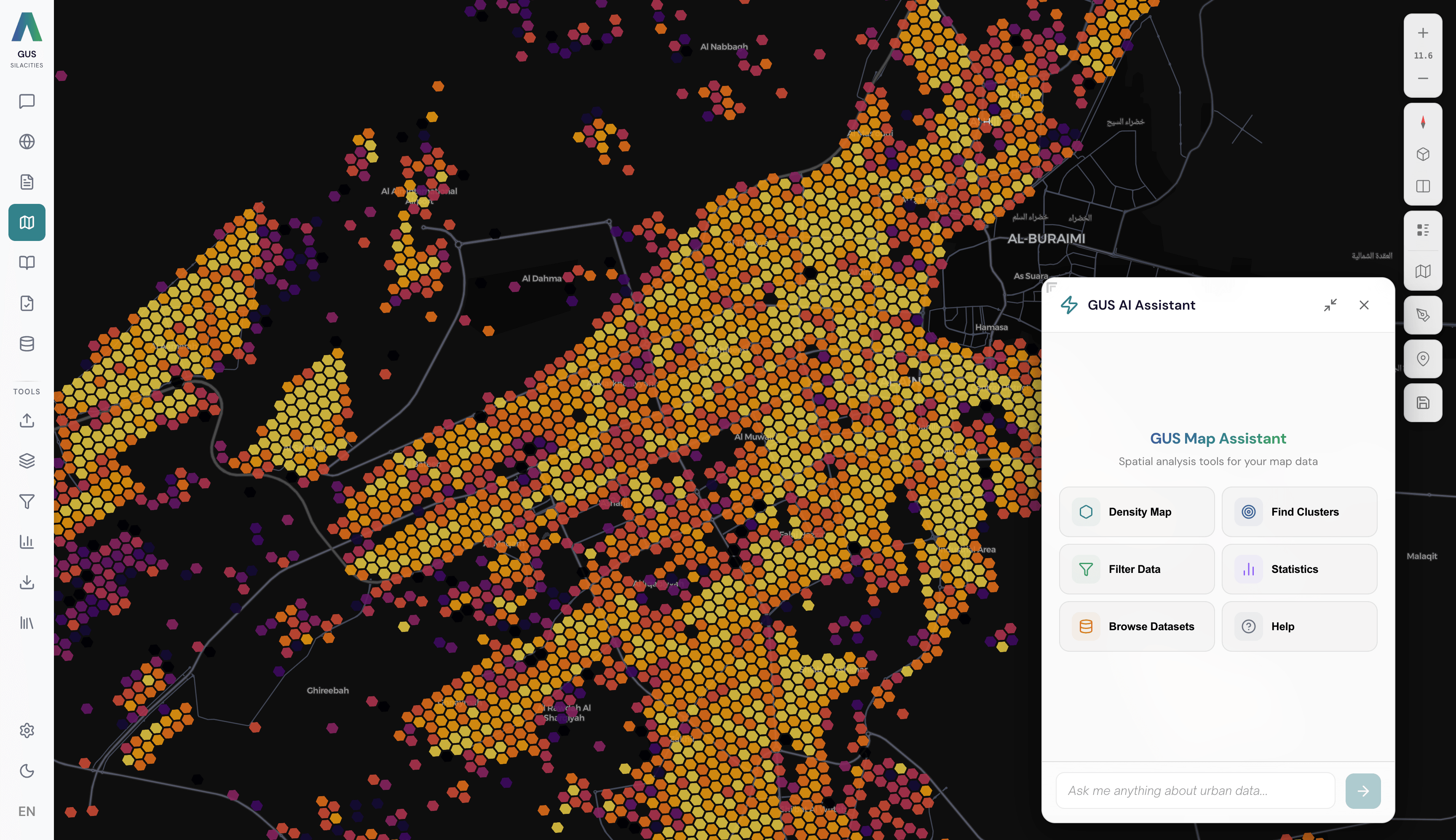
GUS Map is the dedicated mapping workspace at /map. Twelve layer types, the same neighbourhood grid Atlas runs on, six panels for hand-control · Data Library, Layers, Data Operations, Charts, Export & Share, Saved Maps. Pinned in the bottom-right corner is Ask GUS Map — the AI Map Assistant. Type what you want changed on the map and it changes it. Adds layers, applies filters, recolours by a different field, zooms to a place, swaps basemap. Every change is undoable. You stay on one canvas.
Load. Layer. Ask. Save.
Open the Data Library
First icon in the sidebar rail. Pull any indexed dataset across from Data Management, or drop a local file (GeoJSON, CSV, Shapefile ZIP, KML, GPKG) straight onto the canvas.
Build layers by hand or ask
Open the Layers panel and click + Add Layer · 12 types from Point through Hexbin, H3, Heatmap and S2. Or click Ask GUS Map in the bottom-right and say what you want · "show me parks coloured by rating", "filter the community layer to areas with population above 10,000", "switch to satellite basemap". The assistant reads your active layers, viewport, and selected features on every turn.
Filter, chart, or chain steps
Data Operations builds dataset / field / operator / value filters with AND logic. The Charts panel adds bar, line, scatter, histogram or pie. The AI Assistant chains operations in one turn · discover the dataset, load it, filter to a category, recolour by a field — done before you finish reading the narration.
Undo. Save. Share.
Every assistant change goes on an undo stack with a count badge — pop a filter, a colour change, an opacity tweak, a viewport move, a basemap switch. Export & Share takes a PNG of the current view, generates a permalink that encodes the full state, or saves the scene to the Map Library. Reopen and you are back where you were · layers, styles, zoom, pitch, bearing.
Where GUS Map earns its keep.
Ask GUS Map · the AI Assistant
Bottom-right floating panel. Different from GUS Chat — Chat writes you an answer about the city, the Assistant changes what is on the map. Type "filter to top 25% by industrial floor area then recolour with a teal ramp" and watch it happen on the canvas before the narration finishes.
Undo, every step
Filters, colour changes, opacity, layer visibility, viewport moves, basemap switches — all reversible from the Undo button in the panel header. A count badge tells you how many changes are in the stack. Lets you experiment without losing the scene you started with.
Clarification, not guesswork
"Show me satisfaction" might mean add a layer, recolour the current one, or filter to high values. When the request has multiple plausible interpretations the Assistant shows labelled option pills rather than guessing — you click the one that matches your intent.
Production-grade GIS, GUS data
Built on the engine the world's largest data teams use, wired to your project's spatial library and pre-loaded at the same neighbourhood-grid resolution Atlas runs on.
Full hand-control, whenever you want it
When you want every lever yourself · Data Library, Layers, Data Operations, Charts, Export & Share, Saved Maps along the left rail. The Assistant on the right is opt-in — close the panel and the workspace is pure GIS.
The Map Library
Every scene you save comes back exactly as you left it · layers, styles, filters, zoom, bearing, pitch. Flag a save as public and the permalink works without a login. GUS Fieldnotes can anchor a scene with the same snapshot.
For workshops where we want a full GIS console on the screen, load, layer, operate, the Map workspace is the room.